nx1.info | Docker Bullshit 2
aka I didn't tell you to fill up my root partition.
This post-mortem is dedicated to the Docker development team who have made
their software absolutely crystal clear to all users, once again thank you.
I. The event
On Friday 3rd July Hans gets a phone call from our customer Thomas over in
Baltimore, USA. Hans misses the call but tells me to ssh into their smartbench
to check if everything is good and up to date.
I ssh in fine, have a snoop around, run:
docker images --digests
I notice that a few containers are out of date, so I run the program and they
go ahead and update...
I then fire-up VNC to make sure the program is running properly, it appears to
be, all sensors connected and no issues...
I close the program and then notice the following error message, except the
free space is at 0Mb
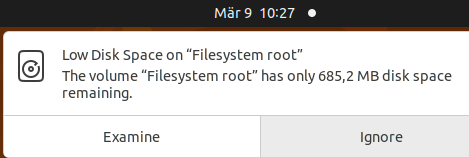
Concerning... I start firing up the usual gaunlet of commands to try and figure
out what the hell is going on
matoha@orin-nx-2:~$ df -h
Filesystem             Size  Used Avail Use% Mounted on
/dev/nvme0n1p1          98G   97G     0 100% /
tmpfs                  7.7G  176K  7.7G   1% /dev/shm
tmpfs                  3.1G   27M  3.1G   1% /run
tmpfs                  5.0M  8.0K  5.0M   1% /run/lock
/dev/nvme0n1p10         63M  110K   63M   1% /boot/efi
/dev/mapper/crypt_ssd  196G  8.6G  178G   5% /ssd
tmpfs                  1.6G  152K  1.6G   1% /run/user/1001
tmpfs                  1.6G  108K  1.6G   1% /run/user/1000
Several observations to make here:
1. The root parition /dev/nvme0n1p1 (98Gb) is completely full with 0 bytes available.
2. The encrypted partition /dev/mapper/crypt_ssd (196Gb) only contains 8.6Gb of data, suspiciously low.
Naturally, I start investigating what could be using up all the space, from the home directory /home/matoha/
I run the disk usage command (du) on the current dir (*) with the summary -s and human readable -h flags -sh
so it doesn't go and recursively search through all sub-directories.
matoha@orin-nx-2:~$ df -h
matoha@orin-nx-2:~$ du -sh * | sort -rh | head -10
1.7G    Documents
924K    genicam_xml_cache
24K     Desktop
4.0K    Videos
4.0K    thinclient_drives
4.0K    Templates
4.0K    screen_startup.sh
4.0K    Public
4.0K    Pictures
4.0K    Music
Hmm... only thing here is the Documents folder using 1.7Gb, so the space must be being filled elsewhere...
The next command I was about to run was:
sudo du -xh / | sort -rh | head -10
Which finds the 10 largest filesystem entries under the root directory (/)
sudo is required to traverse admin directories like /root and /var/lib and /etc/ssl/private
du -x tells the command to stay in one filesystem (partition) which means that
other paritions such as /ssd will not be scanned.
the du command is then piped to be sorted by largest first then only the top 10 are shown.
Unfortunately before I was able to type this command in, Thomas on the other
end decided to turn off the device which was the beginning of the problem...
NOTE: a more user-friendly way to check disk space is using ncdu:
sudo apt install ncdu
ncdu
II. On the phone with Thomas...
Hans eventually gets on the phone with Thomas, he tells us that the rules he
set via the web-app did not seem to be reflected on the gui, Hans tells him to
start up the bench and we can debug the issue...
Thomas twists the hallowed activation actuator, the NVIDIA splash screen shows,
some of the usual ubuntu cli spam, then... nothing, black screen.
I'm looking at Hans and trying to tell him the thing is bricked without saying
the words, he gets the message. We apologise to Thomas but tell him help is on
the way.
Thomas' stress is clealy audible on the phone, he was planning to show off the
the device at a Goodwill summit, all those plans now out the window :(
By some miracle, Hans happened to be flying to Washington exactly a week from
away on the 10th, a minor detour to Baltimore and we should be able to sort the
issue with boots on the ground...
III. Boots on the ground
Hans flies over, lands on Friday and on Saturday morning heads over Baltimore.
Spamming F12 during the boot sequence hans manages to boot into the UEFI
(Unified Extensible Firmware Interface) shell and is able to navigate around
the directory structure. The heavily reduced shell however makes debugging
the disk space issue difficult, no human readable sizes and no helpful
recursive searching commands are available to us.
Hans reboots again, this time once the device reaches the black screen we order
him to press Ctrl + Alt + F3 and try all the other F keys, he does this and on
pressing one of the F-keys the device jumps into to the virtual terminal (TTY).
He logs into the device using the standard credentials and now is logged as
usual in linux with all our usual commands available to us.
We run the command we never got to run:
matoha@orin-nx-2:/$ sudo du -xh / | sort -rh | head -10
98G     /
83G     /var
80G     /var/lib/containerd
81G     /var/lib
41G     /var/lib/containerd/io.containerd.snapshotter.v1.overlayfs/snapshots
41G     /var/lib/containerd/io.containerd.snapshotter.v1.overlayfs
19G     /var/lib/containerd/io.containerd.content.v1.content/blobs/sha256
19G     /var/lib/containerd/io.containerd.content.v1.content/blobs
19G     /var/lib/containerd/io.containerd.content.v1.content
15G     /usr
Bingo, /var/lib/containerd/ is clogging up the entire root directory,
preventing the device from booting. A quick:
docker system prune -a
and we remove all unused containers, networks and images.
One more check on disk space and we get:
matoha@orin-nx-2:~# df -h
Filesystem             Size  Used Avail Use% Mounted on
/dev/nvme0n1p1          98G   22G   73G  23% /
tmpfs                  7.7G  176K  7.7G   1% /dev/shm
tmpfs                  3.1G   27M  3.1G   1% /run
tmpfs                  5.0M  8.0K  5.0M   1% /run/lock
/dev/nvme0n1p10         63M  110K   63M   1% /boot/efi
/dev/mapper/crypt_ssd  196G  8.6G  178G   5% /ssd
tmpfs                  1.6G  152K  1.6G   1% /run/user/1001
tmpfs                  1.6G  108K  1.6G   1% /run/user/1000
Succesfully clearing out 73Gb of space from the root partition, we reboot and
the device fires up fine this time :)
IV. Okay, but I never told you to save containers there...
So our immediate action to the problem was:
"Why are the containers saving there? Didn't we explicitly ask it to save it in /ssd/docker???"
matoha@orin-nx-2:~$ docker info | grep "Docker Root Dir"
Docker Root Dir: /ssd/docker
Yes we did, we had explicitly changed /etc/docker/daemon.json to point to /ssd/docker
so why then when we do:
matoha@orin-nx-2:~$ sudo du -xh / 2>/dev/null | sort -rh | head -n 20
[sudo] password for matoha:
64G     /
44G     /var
43G     /var/lib/containerd
43G     /var/lib
30G     /var/lib/containerd/io.containerd.snapshotter.v1.overlayfs/snapshots
30G     /var/lib/containerd/io.containerd.snapshotter.v1.overlayfs
14G     /usr
13G     /var/lib/containerd/io.containerd.content.v1.content/blobs/sha256
13G     /var/lib/containerd/io.containerd.content.v1.content/blobs
13G     /var/lib/containerd/io.containerd.content.v1.content
6.5G    /usr/lib
4.4G    /usr/local/cuda-12.6
4.4G    /usr/local
4.4G    /opt
4.1G    /usr/local/cuda-12.6/targets/aarch64-linux/lib
4.1G    /usr/local/cuda-12.6/targets/aarch64-linux
4.1G    /usr/local/cuda-12.6/targets
3.8G    /usr/lib/aarch64-linux-gnu
3.0G    /var/lib/containerd/io.containerd.snapshotter.v1.overlayfs/snapshots/93/fs/usr
3.0G    /var/lib/containerd/io.containerd.snapshotter.v1.overlayfs/snapshots/93/fs
do we still have 43Gb of stuff in /var/lib/containerd?
V. The actual demon: containerd
So it turns out that even though we had told Docker to go and use /ssd/docker
we did not tell Docker's underlying container engine manager (containerd)
to use /ssd
To solve this problem and make containerd actually go and save things into /ssd
we performed the following steps:
1. Stop the container services
2. Move the existing folder to /ssd (or delete it and run mkdir -p /ssd/containerd to start fresh)
3. Create a symlink to the new location
4. Restart the services:
sudo systemctl stop docker containerd
sudo mv /var/lib/containerd /ssd/
sudo ln -s /ssd/containerd /var/lib/containerd
sudo systemctl start containerd docker
An important note is that containerd is actually its own standalone software,
and is not connected to the Docker in its settings. As such containerd has
its own configuration file located in /etc/containerd/config.toml which specifies
its own paths:
root@orin-nx-5:/ssd/docker/containers# cat /etc/containerd/config.toml
#   Copyright 2018-2022 Docker Inc.

#   Licensed under the Apache License, Version 2.0 (the "License");
#   you may not use this file except in compliance with the License.
#   You may obtain a copy of the License at

#       http://www.apache.org/licenses/LICENSE-2.0

#   Unless required by applicable law or agreed to in writing, software
#   distributed under the License is distributed on an "AS IS" BASIS,
#   WITHOUT WARRANTIES OR CONDITIONS OF ANY KIND, either express or implied.
#   See the License for the specific language governing permissions and
#   limitations under the License.

disabled_plugins = ["cri"]

#root = "/var/lib/containerd"
#state = "/run/containerd"
#subreaper = true
#oom_score = 0

#[grpc]
#  address = "/run/containerd/containerd.sock"
#  uid = 0
#  gid = 0

#[debug]
#  address = "/run/containerd/debug.sock"
#  uid = 0
#  gid = 0
#  level = "info"
Notice that all the commands in this file are actually commented out, this
however just makes it so that containerd uses the default values, which are the
same as the ones shown above.
Why not changes the paths in the containerd config instead of just symlinking?
We could just change the paths in the containerd config to point to the
directories we want, but there are some advantages to using the symlink
instead:
While it is entirely possible to delete the symlink and edit containerd's
configuration file (/etc/containerd/config.toml) to point to the SSD
natively, using a symlink is actually much safer.
Many third-party tools (especially NVIDIA's custom Jetson container runtimes
and AI tools) are poorly programmed and will blindly look for the hardcoded
/var/lib/containerd path. If that path doesn't exist, those tools will crash.
By leaving the symlink there, we tell every single tool on the system
into thinking everything is on the main drive
while safely redirecting all the heavy data to the SSD.
^ Take this suggestion with a grain of salt though
What actually is containerd? (ai slop)
To understand what containerd holds, it helps to understand what it actually
is.
When you type a command like docker run , Docker doesn't actually do the heavy
lifting of running the container anymore. Instead, Docker acts as the "manager"
and passes the actual work down to its underlying "engine"—which is containerd.
Because containerd is the engine actually running the show, the folder you
just moved holds the heaviest, most critical pieces of your containers.
Specifically, it holds three main things:
1. Downloaded Images ( io.containerd.content )
When you pull an image from the internet (like a massive AI model or an Ubuntu
base image), the raw compressed files (blobs) are downloaded and stored here.
This is why you saw this folder taking up 13GB earlier.
2. Live Container Filesystems ( io.containerd.snapshotter )
When you actually start a container, containerd unzips the image and creates
a working, live filesystem for the container to use. It uses a technology
called overlayfs to stack these files together. Any file a running container
creates, modifies, or deletes is tracked here. Because these are uncompressed,
fully extracted files, this is usually the largest folder (which was 30GB on
your system earlier).
3. Metadata and Tracking ( io.containerd.metadata )
This contains tiny, highly efficient databases (like BoltDB) that keep track of
which images you own, which containers are currently running, and how the
network is attached to them.
Why does Docker also have a folder?
Since Docker delegates the actual container execution to containerd , the
docker folder is mostly used to store things specific to the Docker ecosystem:
Docker-specific volumes, Docker networks, Docker swarm configs, and build
caches. On a modern system (especially on NVIDIA Jetsons), containerd does
the bulk of the heavy lifting, which is why its folder gets so massive!
VI. Fixing Docker "Ghost" Containers
Issue: Error response from daemon: No such container...
Because containerd was wiped/reset but Docker's metadata was intact, Docker
tried to start containers that containerd had forgotten about.
The Fix: Nuke Docker's metadata so both engines start completely fresh.
Compose will automatically recreate the containers.
sudo systemctl stop docker
sudo rm -rf /ssd/docker/containers/*
sudo systemctl start docker
3. Expanding the 2TB NVMe Drive
We were pretty sure that we had put a 2Tb drive into that specific jetson, and
yet the output from df -h was saying it was only 195Gb. The output from
however lsblk proved that we were right:
matoha@orin-nx-2:~# lsblk
NAME          MAJ:MIN RM   SIZE RO TYPE  MOUNTPOINTS
zram0         252:0    0 978.5M  0 disk  [SWAP]
zram1         252:1    0 978.5M  0 disk  [SWAP]
zram2         252:2    0 978.5M  0 disk  [SWAP]
zram3         252:3    0 978.5M  0 disk  [SWAP]
zram4         252:4    0 978.5M  0 disk  [SWAP]
zram5         252:5    0 978.5M  0 disk  [SWAP]
zram6         252:6    0 978.5M  0 disk  [SWAP]
zram7         252:7    0 978.5M  0 disk  [SWAP]
nvme0n1       259:0    0   1.8T  0 disk
├─nvme0n1p1   259:1    0   100G  0 part  /
├─nvme0n1p2   259:2    0   128M  0 part
├─nvme0n1p3   259:3    0   768K  0 part
├─nvme0n1p4   259:4    0  31.6M  0 part
├─nvme0n1p5   259:5    0   128M  0 part
├─nvme0n1p7   259:7    0  31.6M  0 part
├─nvme0n1p8   259:8    0    80M  0 part
├─nvme0n1p9   259:9    0   512K  0 part
├─nvme0n1p10  259:10   0    64M  0 part  /boot/efi
├─nvme0n1p11  259:11   0    80M  0 part
├─nvme0n1p12  259:12   0   512K  0 part
├─nvme0n1p13  259:13   0    64M  0 part
├─nvme0n1p14  259:14   0   400M  0 part
├─nvme0n1p15  259:15   0 479.5M  0 part
└─nvme0n1p16  259:16   0   200G  0 part
  └─crypt_ssd 253:0    0   200G  0 crypt /ssd
The drive nvme0n1 was 1.8Tb total but the encrypted partition was only given
200G. Because the /ssd partition (p16) was the last partition on the drive, it
was expanded into the remaining 1.5TB of unallocated space.
apt install cloud-guest-utils
sudo growpart /dev/nvme0n1 16
sudo cryptsetup resize crypt_ssd
sudo resize2fs /dev/mapper/crypt_ssd
(Note: Expanding the root (p1) partition is not possible because it is blocked by subsequent boot partitions).
6. Auto-Connecting to a Hidden Wi-Fi Network
Issue: A hidden Wi-Fi network refused to auto-connect on boot
and kept asking for the password each time.
Cause: The Wi-Fi password was saved in the matoha user's
encrypted desktop keychain, making it inaccessible during the boot process.
The Fix: Delete the tainted profile and recreate it entirely via the
root terminal, forcing the password to be saved as a system-level secret.
sudo nmcli connection delete "ECommQA"
sudo nmcli connection add type wifi con-name "ECommQA" ssid "ECommQA"
sudo nmcli connection modify "ECommQA" \
  wifi-sec.key-mgmt wpa-psk \
  wifi-sec.psk 'PASSWORD HERE' \
  802-11-wireless.hidden yes \
  802-11-wireless.bssid B6:05:D6:57:E0:E3 \
  connection.autoconnect yes \
  connection.permissions ""
sudo systemctl restart NetworkManager
Do note that running the above commands, especially the first one would disconnect from the internet completely
and thus cancel any exsting ssh session.
To bypass this we can combine the commands into one nohup command so that it can execute all the commands in the background.
sudo nohup sh -c 'nmcli connection delete "ECommQA"; nmcli connection add type wifi con-name "ECommQA" ssid "ECommQA"; nmcli connection modify "ECommQA" wifi-sec.key-mgmt wpa-psk wifi-sec.psk "PASSWORD HERE" 802-11-wireless.hidden yes 802-11-wireless.bssid B6:05:D6:57:E0:E3 connection.autoconnect yes connection.permissions ""; systemctl restart NetworkManager' > /dev/null 2>&1 &